1.6. Integrating with your IDE
1.6.1. phpStorm
Open settings and search for External Tools.
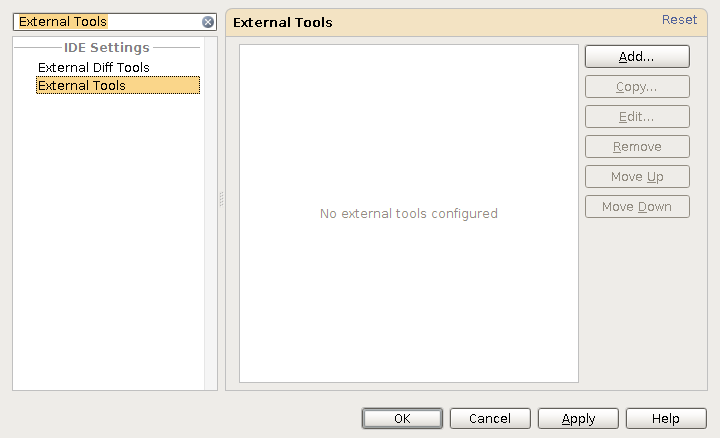
Click on Add.
Enter the data as shown on the screenshot. You can change the parameters as required. And by adding the Project’s source folder as ‘Working Directory’ will DocBlox automatically pick up your configuration file if you have it.
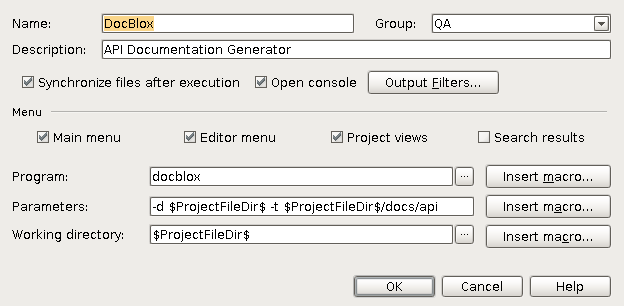
Click on OK.
Click again on OK to close your settings screen.
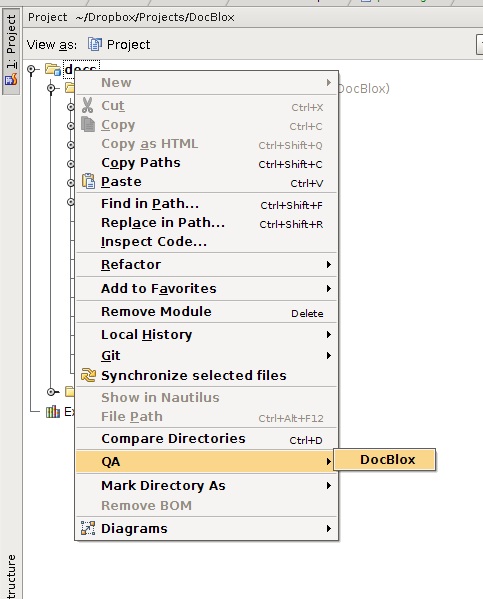
You can now generate your documentation by in your Project view by right clicking on any file or folder, selecting QA and then DocBlox.
1.6.2. Netbeans
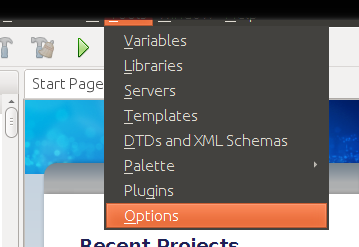
Open your Tools > Options menu.
Click on the PHP icons to go to the PHP settings.
Open the PhpDoc tab and replace /usr/bin/phpdoc with the location of your DocBlox executable (commonly /usr/bin/docblox). It is here that you can enter additional command line arguments.
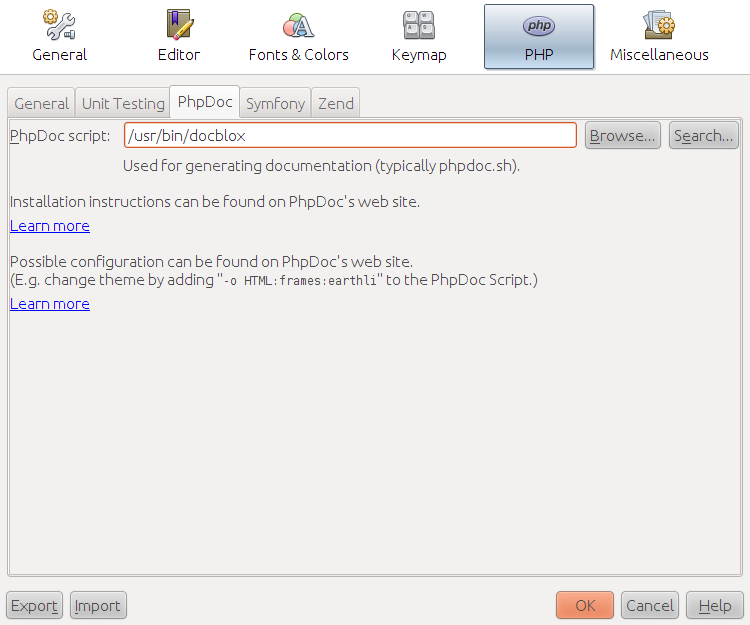
Click on OK to close the Options screen.
Right click on your project name and select Generate PhpDoc to let Netbeans invoke DocBlox and generate your documentation.
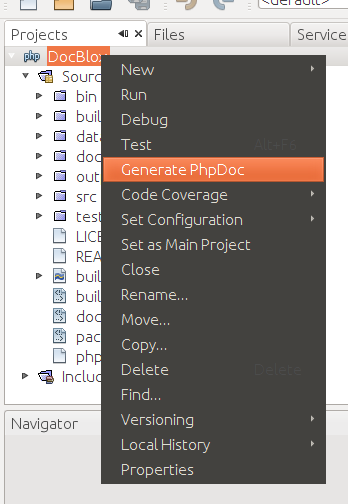
After DocBlox finishes will NetBeans open your documentation in your browser.